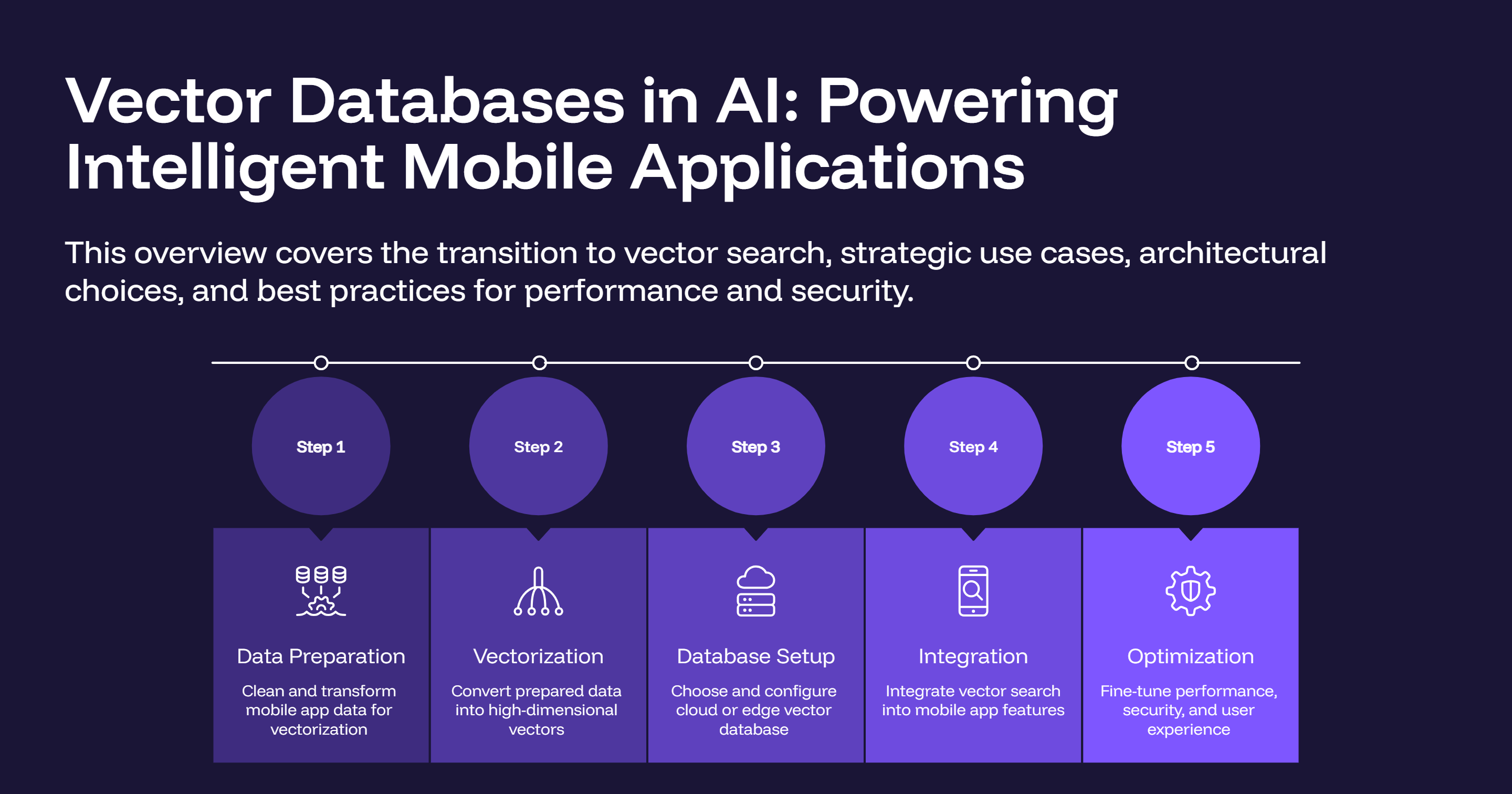
In the rapidly evolving landscape of artificial intelligence, vector databases have emerged as a critical infrastructure component that bridges the gap between traditional data storage and modern AI applications. As mobile applications increasingly incorporate AI capabilities—from intelligent search to personalized recommendations—understanding vector databases has become essential for developers building next-generation mobile experiences.
What is a Vector Database?
A vector database is a specialized database system designed to store, index, and query high-dimensional vector embeddings efficiently. Unlike traditional databases that store structured data in rows and columns, vector databases are optimized for storing mathematical representations of data—vectors—that capture semantic meaning and relationships.
Understanding Vector Embeddings
Vector embeddings are numerical representations of data (text, images, audio, or other content) in a multi-dimensional space. These embeddings are typically generated by machine learning models and encode semantic information in a way that similar items are positioned close to each other in the vector space.
Example:
- The word "king" might be represented as: [0.2, 0.5, -0.3, 0.8, ...]
- The word "queen" would have a similar vector: [0.21, 0.48, -0.29, 0.79, ...]
- The word "car" would be distant: [-0.5, 0.1, 0.7, -0.2, ...]
Why Vector Databases Matter in AI
1. Semantic Search Capabilities
Traditional keyword-based search matches exact terms, but vector databases enable semantic search—finding results based on meaning rather than exact matches. This is crucial for:
- Natural language queries
- Multilingual search
- Context-aware recommendations
2. Similarity Search at Scale
Vector databases excel at finding similar items quickly, even with millions or billions of vectors. This powers:
- Recommendation engines
- Duplicate detection
- Content discovery
3. AI Application Memory
Modern AI applications, especially those using Large Language Models (LLMs), need to access relevant context quickly. Vector databases serve as:
- Long-term memory for chatbots
- Knowledge bases for RAG (Retrieval-Augmented Generation)
- Context stores for personalized AI assistants
4. Real-time Performance
Vector databases use specialized indexing algorithms (like HNSW, IVF, or LSH) that enable:
- Sub-second query responses
- Efficient nearest neighbor searches
- Scalable performance as data grows
Popular Vector Database Solutions
Cloud-Based Options
- Pinecone: Fully managed, easy to integrate
- Weaviate: Open-source with GraphQL API
- Qdrant: High-performance with filtering capabilities
- Milvus: Scalable, open-source solution
Embedded/Local Options
- ChromaDB: Lightweight, Python-friendly
- LanceDB: Serverless, embedded database
- FAISS: Facebook's similarity search library
Use Cases in Mobile Applications
1. Intelligent Search
Enable users to search app content using natural language:
User query: "show me workout plans for beginners"
Vector search finds: Relevant fitness routines, even if they don't contain exact keywords
2. Personalized Recommendations
Recommend content based on user behavior and preferences:
- E-commerce: Similar products
- Media apps: Related articles, videos, or music
- Social apps: Relevant connections or content
3. AI-Powered Chatbots
Build context-aware assistants that remember conversation history and access relevant knowledge:
- Customer support bots
- Personal assistants
- Educational tutors
4. Image and Visual Search
Find similar images or objects within your app:
- Photo organization apps
- Fashion/shopping apps
- Real estate applications
5. Offline AI Capabilities
Store embeddings locally for offline AI features:
- Voice assistants
- Translation apps
- Content classification
Implementing Vector Database in Mobile App Projects
Architecture Overview
Mobile App
    ↓
API Gateway / Backend Service
    ↓
Vector Database ← Embedding Model
    ↓
Traditional Database (metadata, user data)
Implementation Approach
Option 1: Cloud-Based Architecture (Recommended for Production)
Advantages:
- Scalability and performance
- Managed infrastructure
- Real-time synchronization
- Reduced mobile app size
Architecture:
[Mobile App] → [REST API/GraphQL] → [Vector DB Service] → [Pinecone/Weaviate/Qdrant]
                                   ↓
                            [Embedding Service]
Implementation Steps:
- Set Up Backend Service
// Node.js/Express example
const express = require('express');
const { PineconeClient } = require('@pinecone-database/pinecone');

const app = express();
const pinecone = new PineconeClient();

// Initialize Pinecone
await pinecone.init({
  apiKey: process.env.PINECONE_API_KEY,
  environment: process.env.PINECONE_ENVIRONMENT
});

const index = pinecone.Index('mobile-app-index');

// Search endpoint
app.post('/api/search', async (req, res) => {
  const { query, topK = 10 } = req.body;

  // Generate embedding for query
  const queryEmbedding = await generateEmbedding(query);

  // Search vector database
  const results = await index.query({
    vector: queryEmbedding,
    topK: topK,
    includeMetadata: true
  });

  res.json(results);
});
- Mobile App Integration (React Native)
// services/vectorSearch.js
export const searchContent = async (query) => {
  try {
    const response = await fetch('https://api.yourapp.com/api/search', {
      method: 'POST',
      headers: {
        'Content-Type': 'application/json',
        'Authorization': `Bearer ${authToken}`
      },
      body: JSON.stringify({ query, topK: 10 })
    });

    const results = await response.json();
    return results.matches;
  } catch (error) {
    console.error('Search error:', error);
    throw error;
  }
};

// Usage in component
import { searchContent } from './services/vectorSearch';

const SearchScreen = () => {
  const [query, setQuery] = useState('');
  const [results, setResults] = useState([]);

  const handleSearch = async () => {
    const searchResults = await searchContent(query);
    setResults(searchResults);
  };

  return (
    <View>
      <TextInput
        value={query}
        onChangeText={setQuery}
        placeholder="Search..."
      />
      <Button title="Search" onPress={handleSearch} />
      <FlatList
        data={results}
        renderItem={({ item }) => (
          <SearchResult item={item} />
        )}
      />
    </View>
  );
};
- Android Native Integration (Kotlin)
// VectorSearchService.kt
class VectorSearchService(private val apiUrl: String) {
    private val client = OkHttpClient()
    private val gson = Gson()

    suspend fun search(query: String, topK: Int = 10): List<SearchResult> {
        return withContext(Dispatchers.IO) {
            val requestBody = JSONObject().apply {
                put("query", query)
                put("topK", topK)
            }

            val request = Request.Builder()
                .url("$apiUrl/api/search")
                .post(requestBody.toString().toRequestBody("application/json".toMediaType()))
                .build()

            val response = client.newCall(request).execute()
            val results = gson.fromJson(response.body?.string(), SearchResponse::class.java)
            results.matches
        }
    }
}

// Usage in ViewModel
class SearchViewModel : ViewModel() {
    private val searchService = VectorSearchService("https://api.yourapp.com")
    private val _searchResults = MutableLiveData<List<SearchResult>>()
    val searchResults: LiveData<List<SearchResult>> = _searchResults

    fun performSearch(query: String) {
        viewModelScope.launch {
            try {
                val results = searchService.search(query)
                _searchResults.value = results
            } catch (e: Exception) {
                // Handle error
            }
        }
    }
}
- iOS Native Integration (Swift)
// VectorSearchService.swift
class VectorSearchService {
    private let apiUrl: String

    init(apiUrl: String) {
        self.apiUrl = apiUrl
    }

    func search(query: String, topK: Int = 10) async throws -> [SearchResult] {
        let url = URL(string: "\(apiUrl)/api/search")!
        var request = URLRequest(url: url)
        request.httpMethod = "POST"
        request.setValue("application/json", forHTTPHeaderField: "Content-Type")

        let body: [String: Any] = ["query": query, "topK": topK]
        request.httpBody = try JSONSerialization.data(withJSONObject: body)

        let (data, _) = try await URLSession.shared.data(for: request)
        let response = try JSONDecoder().decode(SearchResponse.self, from: data)
        return response.matches
    }
}

// Usage in SwiftUI View
struct SearchView: View {
    @State private var query = ""
    @State private var results: [SearchResult] = []
    private let searchService = VectorSearchService(apiUrl: "https://api.yourapp.com")

    var body: some View {
        VStack {
            TextField("Search...", text: $query)
                .textFieldStyle(RoundedBorderTextFieldStyle())
                .padding()

            Button("Search") {
                Task {
                    results = try await searchService.search(query: query)
                }
            }

            List(results) { result in
                SearchResultRow(result: result)
            }
        }
    }
}
Option 2: Embedded/Local Vector Database (For Offline Capabilities)
Advantages:
- Works offline
- Lower latency
- Privacy-focused
- No backend costs
Limitations:
- Limited dataset size
- Device storage constraints
- Manual synchronization needed
Implementation with ChromaDB (React Native)
// Note: For mobile, you'd need a lightweight alternative or bridge
// Example using a hypothetical mobile-friendly vector library

import VectorDB from 'react-native-vector-db';

class LocalVectorStore {
  constructor() {
    this.db = new VectorDB({
      path: 'app-vectors.db',
      dimensions: 384 // embedding size
    });
  }

  async initialize() {
    await this.db.init();
  }

  async addDocuments(documents) {
    const embeddings = await this.generateEmbeddings(documents);
    await this.db.insert(embeddings);
  }

  async search(query, topK = 10) {
    const queryEmbedding = await this.generateEmbedding(query);
    return await this.db.search(queryEmbedding, topK);
  }

  async generateEmbedding(text) {
    // Use on-device model or cached embeddings
    // Example: TensorFlow Lite, ONNX Runtime
    return await EmbeddingModel.encode(text);
  }
}
Best Practices for Mobile Implementation
1. Optimize for Mobile Constraints
// Implement caching to reduce API calls
class VectorSearchCache {
  constructor(maxSize = 100) {
    this.cache = new Map();
    this.maxSize = maxSize;
  }

  async search(query) {
    const cacheKey = this.hashQuery(query);

    if (this.cache.has(cacheKey)) {
      return this.cache.get(cacheKey);
    }

    const results = await this.performSearch(query);
    this.addToCache(cacheKey, results);
    return results;
  }

  addToCache(key, value) {
    if (this.cache.size >= this.maxSize) {
      const firstKey = this.cache.keys().next().value;
      this.cache.delete(firstKey);
    }
    this.cache.set(key, value);
  }
}
2. Handle Network Conditions
// Implement retry logic and offline fallback
const searchWithRetry = async (query, maxRetries = 3) => {
  for (let i = 0; i < maxRetries; i++) {
    try {
      return await searchContent(query);
    } catch (error) {
      if (i === maxRetries - 1) {
        // Fall back to local cache or show error
        return getCachedResults(query);
      }
      await delay(1000 * Math.pow(2, i)); // Exponential backoff
    }
  }
};
3. Implement Progressive Loading
// Load results in batches for better UX
const SearchResults = () => {
  const [results, setResults] = useState([]);
  const [loading, setLoading] = useState(false);

  const loadMore = async () => {
    setLoading(true);
    const nextBatch = await searchContent(query, {
      offset: results.length,
      limit: 20
    });
    setResults([...results, ...nextBatch]);
    setLoading(false);
  };

  return (
    <FlatList
      data={results}
      onEndReached={loadMore}
      onEndReachedThreshold={0.5}
      ListFooterComponent={loading ? <Spinner /> : null}
    />
  );
};
4. Secure API Communication
// Implement proper authentication and encryption
const secureSearch = async (query) => {
  const token = await getAuthToken();

  const response = await fetch(API_URL, {
    method: 'POST',
    headers: {
      'Authorization': `Bearer ${token}`,
      'Content-Type': 'application/json',
      'X-API-Key': API_KEY
    },
    body: JSON.stringify({ query })
  });

  if (!response.ok) {
    throw new Error('Search failed');
  }

  return await response.json();
};
Real-World Example: Building an AI-Powered Knowledge Base App
Let's walk through a complete example of building a mobile app with vector database integration:
Scenario: Technical Documentation Search App
Requirements:
- Search through thousands of technical documents
- Natural language queries
- Offline capability for cached results
- Fast response times
Implementation:
- Data Preparation
# Backend: Prepare and index documents
from sentence_transformers import SentenceTransformer
import pinecone

model = SentenceTransformer('all-MiniLM-L6-v2')

# Initialize Pinecone
pinecone.init(api_key="your-api-key", environment="us-west1-gcp")
index = pinecone.Index("tech-docs")

# Process documents
documents = load_documents()  # Load your docs
for doc in documents:
    # Generate embedding
    embedding = model.encode(doc['content']).tolist()

    # Upsert to Pinecone
    index.upsert(vectors=[{
        'id': doc['id'],
        'values': embedding,
        'metadata': {
            'title': doc['title'],
            'category': doc['category'],
            'url': doc['url']
        }
    }])
- Backend API
// Express.js API endpoint
app.post('/api/search-docs', async (req, res) => {
  const { query, filters } = req.body;

  // Generate query embedding
  const queryEmbedding = await generateEmbedding(query);

  // Search with filters
  const results = await index.query({
    vector: queryEmbedding,
    topK: 20,
    filter: filters,
    includeMetadata: true
  });

  // Enrich results with full content if needed
  const enrichedResults = await enrichResults(results.matches);

  res.json({
    results: enrichedResults,
    query: query,
    timestamp: Date.now()
  });
});
- Mobile App (React Native)
// Complete search component
import React, { useState, useEffect } from 'react';
import { View, TextInput, FlatList, Text } from 'react-native';
import AsyncStorage from '@react-native-async-storage/async-storage';

const DocumentSearch = () => {
  const [query, setQuery] = useState('');
  const [results, setResults] = useState([]);
  const [loading, setLoading] = useState(false);

  // Debounced search
  useEffect(() => {
    const timer = setTimeout(() => {
      if (query.length > 2) {
        performSearch(query);
      }
    }, 500);

    return () => clearTimeout(timer);
  }, [query]);

  const performSearch = async (searchQuery) => {
    setLoading(true);

    try {
      // Try online search first
      const response = await fetch('https://api.yourapp.com/api/search-docs', {
        method: 'POST',
        headers: { 'Content-Type': 'application/json' },
        body: JSON.stringify({ query: searchQuery })
      });

      const data = await response.json();
      setResults(data.results);

      // Cache results for offline use
      await AsyncStorage.setItem(
        `search_${searchQuery}`,
        JSON.stringify(data.results)
      );
    } catch (error) {
      // Fallback to cached results
      const cached = await AsyncStorage.getItem(`search_${searchQuery}`);
      if (cached) {
        setResults(JSON.parse(cached));
      }
    } finally {
      setLoading(false);
    }
  };

  return (
    <View style={{ flex: 1, padding: 16 }}>
      <TextInput
        value={query}
        onChangeText={setQuery}
        placeholder="Search documentation..."
        style={{
          borderWidth: 1,
          borderColor: '#ccc',
          borderRadius: 8,
          padding: 12,
          marginBottom: 16
        }}
      />

      {loading && <Text>Searching...</Text>}

      <FlatList
        data={results}
        keyExtractor={(item) => item.id}
        renderItem={({ item }) => (
          <View style={{
            padding: 16,
            borderBottomWidth: 1,
            borderBottomColor: '#eee'
          }}>
            <Text style={{ fontSize: 18, fontWeight: 'bold' }}>
              {item.metadata.title}
            </Text>
            <Text style={{ color: '#666', marginTop: 4 }}>
              {item.metadata.category}
            </Text>
            <Text style={{ marginTop: 8 }}>
              Score: {(item.score * 100).toFixed(1)}%
            </Text>
          </View>
        )}
      />
    </View>
  );
};

export default DocumentSearch;
Performance Optimization Tips
1. Reduce Embedding Dimensions
Use dimensionality reduction techniques to decrease vector size without significant accuracy loss:
from sklearn.decomposition import PCA

# Reduce 768-dim to 384-dim
pca = PCA(n_components=384)
reduced_embeddings = pca.fit_transform(original_embeddings)
2. Implement Hybrid Search
Combine vector search with traditional filtering for better results:
const hybridSearch = async (query, filters) => {
  // Vector search for semantic matching
  const vectorResults = await vectorSearch(query);

  // Apply metadata filters
  const filtered = vectorResults.filter(result =>
    filters.category ? result.metadata.category === filters.category : true
  );

  return filtered;
};
3. Use Approximate Nearest Neighbor (ANN)
Configure your vector database for speed vs. accuracy tradeoff:
# Pinecone configuration
index = pinecone.Index("mobile-app", metric="cosine")

# Query with ANN parameters
results = index.query(
    vector=query_embedding,
    top_k=10,
    include_metadata=True,
    # Adjust for speed/accuracy tradeoff
    ef=100  # Higher = more accurate but slower
)
Monitoring and Analytics
Track vector search performance in your mobile app:
// Analytics wrapper
const trackSearch = async (query, results, responseTime) => {
  await analytics.track('vector_search', {
    query_length: query.length,
    results_count: results.length,
    response_time_ms: responseTime,
    top_score: results[0]?.score,
    timestamp: Date.now()
  });
};

// Usage
const searchWithAnalytics = async (query) => {
  const startTime = Date.now();
  const results = await searchContent(query);
  const responseTime = Date.now() - startTime;

  await trackSearch(query, results, responseTime);
  return results;
};
Conclusion
Vector databases represent a paradigm shift in how we build intelligent mobile applications. By enabling semantic search, powering recommendation systems, and serving as memory for AI assistants, they unlock capabilities that were previously impossible or impractical in mobile environments.
Key Takeaways:
- Vector databases store semantic meaning, not just keywords, enabling intelligent search and recommendations
- Cloud-based solutions (Pinecone, Weaviate, Qdrant) offer scalability and managed infrastructure
- Mobile integration requires careful consideration of network conditions, caching, and offline capabilities
- Hybrid approaches combining vector search with traditional filtering often yield the best results
- Performance optimization through caching, dimensionality reduction, and progressive loading is essential
Getting Started Checklist:
- Choose a vector database solution (cloud vs. embedded)
- Set up backend API for vector operations
- Implement embedding generation pipeline
- Build mobile app integration with caching
- Add offline fallback mechanisms
- Implement monitoring and analytics
- Optimize for mobile constraints (battery, bandwidth, storage)
- Test with real user queries and iterate
As AI continues to evolve, vector databases will become increasingly central to mobile app development. By understanding and implementing these technologies now, you'll be well-positioned to build the next generation of intelligent mobile experiences.
Additional Resources: